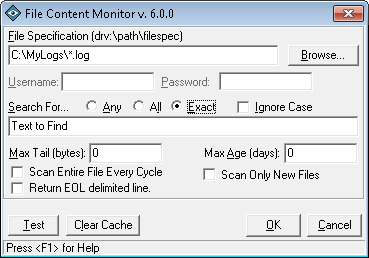
You can evaluate these contents using a basic ALL, ANY, or EXACT query capability for one or more query items.
This add-in is ideal for locating error or other important occurrences within log files (such as backup logs.)
From the Entry Editor, set the Type of entry to Add-In, click Select Add-In and select the File Content Monitor.
Click on the Configure Add-In button.
File Content Monitor Configuration - General Settings
After selecting to Configure Add-in from the main ipSentry Entry Editor, you will be presented with the File Content Monitoring configuration options.
During a monitoring cycle, the add-in will perform the following tasks:
Open the requested file(s).
Scan from the last position scanned to the end.
If the search term is found, the add-in will return an alert status.
The add-in maintains an internal store of file names and positions last evaluated.
File Name / Specification
Enter the entire path and file specification containing the files to be monitored.
Wild Card: You can use standard wild-card specification in this field.
e.g. C:\LogFiles\*.LOG
Special File Naming:
You can format file name specification using date stamp conversion keywords which will cause the add-in to monitor files that are named with specific date information.
For example, if you use an application that logs all activity performed on a specific day to a separate file per day, the file might be named with the format of YYYYMMDD.LOG. A good example is the IIS log files "exyymmdd.log".
In order to have the add-in evaluate these types of files, you can use key values in the file specification in order to limit the files that the add-in will evaluate.
ex%yy%*.log would evaluate all log files created for the current year.
ex%yy%%mm%*.log would evaluate all log files in the current month and year.
ex%yy%%mm%%dd%.log would evaluate only log files for the current date.
Assuming the date of April, 7, 2001, the above example would be converted to the following respectively:
ex01*.log
ex0104*.log
ex010407.logUser Name / Password
When performing a content scan on files contained on a remote system using a UNC formatted path (e.g. \\computer\share\filespec ) enter the appropriate logon credentials required to gain access to the remote folder. If ipSentry is running under a security context with appropriate rights, you may leave these fields blank and ipSentry will attempt to connect under the current process credentials.Search For
This field contains the terms (search words) you wish to find. You may enter one or many terms in this field and they will be evaluated based on the limitations set by the Any/All/Exact settings.Any
Select this option if you wish to have the add-in return an alert status if one or more of the terms are found during the file scan.
All
Select this option if you wish to have the add-in return an alert status if all of the search terms were found during a file scan.
Exact
Select this option if you wish to have the add-in return an alert status if the search term must be found exactly as entered - as a phrase.
Ignore Case
Select this option if you are unsure of the case (UPPER or lower) that will be in the file. If this option is not selected, the data in the file must match the terms case precisely.Max Tail (bytes)
This field represents the maximum number of bytes that will be evaluated at the end of any file.
For example, setting this value to 10240 would cause the add-in to evaluate no more than the last 10240 bytes of any given file - even if the add-in has not scanned any of the data in the file before this point.
Setting this value to -1 is recommended.Max Age (days)
When using a wild-card specification, or monitoring a rarely modified file, you may wish to have the add-in ignore files that are older than a specific amount of time.
For example, if you are monitoring C:\LogFiles\*.LOG, there may be files well over a month old. Perhaps you only want to monitor files that have been updated in the last couple of days - in which case, you would enter a 1 or 2 in this field - causing the add-in to ignore files older than a couple of days.Scan Entire File Every Cycle
Check this option if the file being monitored is always being overwritten, updated, or copied.
It is not advisable to set this option on static files or create a monitoring entry that uses this setting that is not dependent on some other entry.
For example, you might configure a File Tail Monitoring entry that is dependent on a File/Directory monitoring entry that detects a modification to a file. Such as a process log file that gets overwritten every day.Only Files Since Last Check
Check this option if you only want to scan files that did not exist during the last cycle that match your file specification. This is useful where you have a large number of files and simply want to evaluate only newly created files for the content match.Return EOL Delimited Line
When scanning text files with a standard EOL character (CRLF, CR, LF), you can select this option to return the line of data formatted in the results for use with the %%mach.resultinfo%% keyword.
This option should only be used on standard text files.
%%date.calc The %%date.calc keyword is a new keyword which allows you to specify that the date value to use for date format conversion should be calculated.
The format is %%date.calc{+/-}{#}{interval}%%
Where:
{+/-} Represents ADD or SUBTRACT the number of intervals
{#} Represents the number of intervals to add or subtract.
{interval} Represents the interval of time.
y=year
d=day
m=month
h=hour
n=minute
s=second
Example: %%date.calc-5d%% would cause the date/time value used to be the current date/time minus 5 days.
%d% Display the day as a number without a leading zero (1 31). %dd% Display the day as a number with a leading zero (01 31). %ddd% Display the day as an abbreviation (Sun Sat). %dddd% Display the day as a full name (Sunday Saturday). %aaaa% The same as dddd, only it's the localized version of the string. %w% Display the day of the week as a number (1 for Sunday through 7 for Saturday). %ww% Display the week of the year as a number (1 54). %m% Display the month as a number without a leading zero (1 12). %mm% Display the month as a number with a leading zero (01 12). %mmm% Display the month as an abbreviation (Jan Dec). %mmmm% Display the month as a full month name (January December). %oooo% The same as mmmm, only it's the localized version of the string. %q% Display the quarter of the year as a number (1 4). %y% Display the day of the year as a number (1 366). %yy% Display the year as a 2-digit number (00 99). %yyyy% Display the year as a 4-digit number (100 9999). %h% Display the hour as a number without leading zeros (0 23). %hh% Display the hour as a number with leading zeros (00 23). %n% Display the minute as a number without leading zeros (0 59). %nn% Display the minute as a number with leading zeros (00 59). %s% Display the second as a number without leading zeros (0 59). %ss% Display the second as a number with leading zeros (00 59).
%yymmdd% Displays the Year/Month/Day in YYMMDD format.
%yyyymmdd% Displays the Century with Year/Month/Day in CCYYMMDD format.
%dd-mmm-yy% Displays the date in DD-MMM-YY format (e.g. 01-JAN-01)
%dd-mmm-yyyy% Displays the date in DD-MMM-YYYY format (e.g. 01-JAN-2001)